
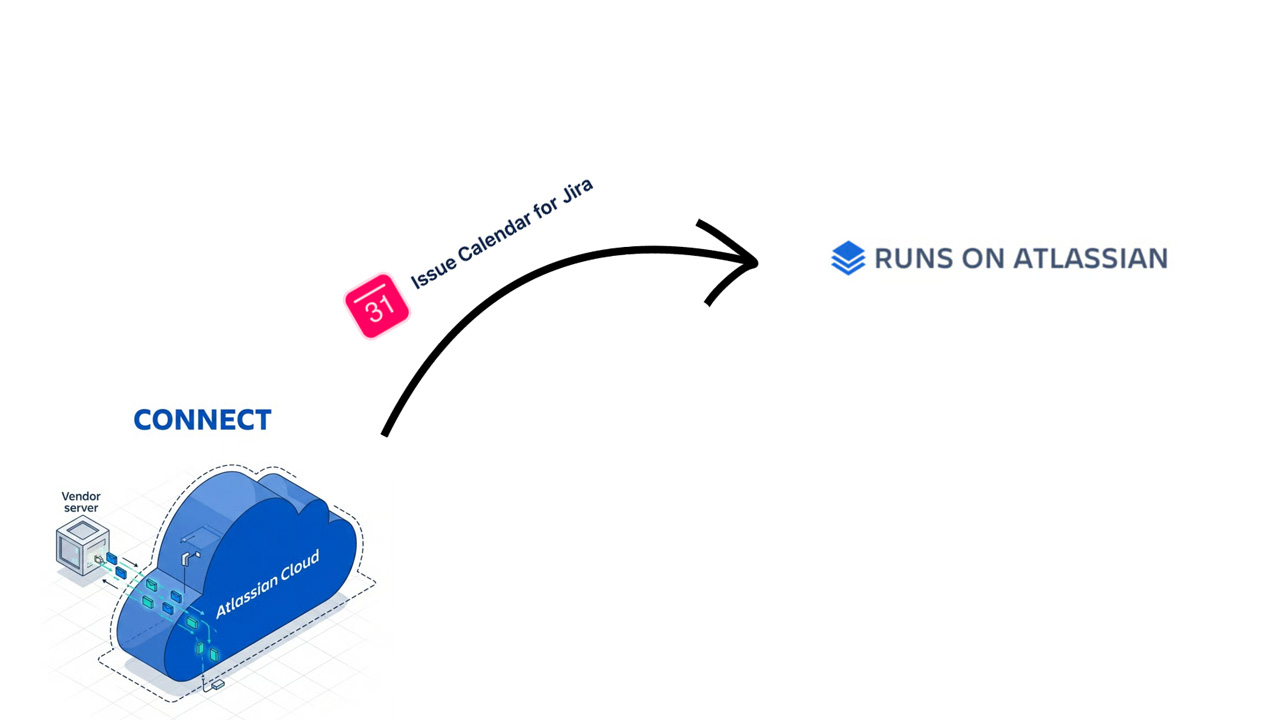
Connect to Forge data migration – Migrating your data in Issue Calendar for Jira
Well – the time everybody has been patiently waiting for is finally here. Issue Calendar for Jira becomes one of the “Runs on Atlassian” family of addons available on Atlassian Marketplace.
What does it mean?
- App is hosted on Atlassian infrastructure
- Data is contained within Atlassian infrastructure
- Customers are in control of data egress, and can fully block it at any time
- App offers data residency in the same regions as the host product
Atlassian programmatically verifies when apps meet these criteria, and the Runs on Atlassian badge will only appear when apps qualify.
Why is this change important
Admin controls enable customers to close off data egress to external domains, keeping all app data in Atlassian’s secure environment.
Data migration guide from connect
If you had installed the app Prior to 1st October 2026 – the application might have still been running on currently outdated technology (“Atlassian Connect”). In order for your data to be migrated off the remote servers to the Forge infrastructure – you need to trigger the manual data migration.
We have prepared this process so as it takes minimum of your time. In order for the app not to store nor process any data remotely – you need to trigger the migration process manually.
Tutorial
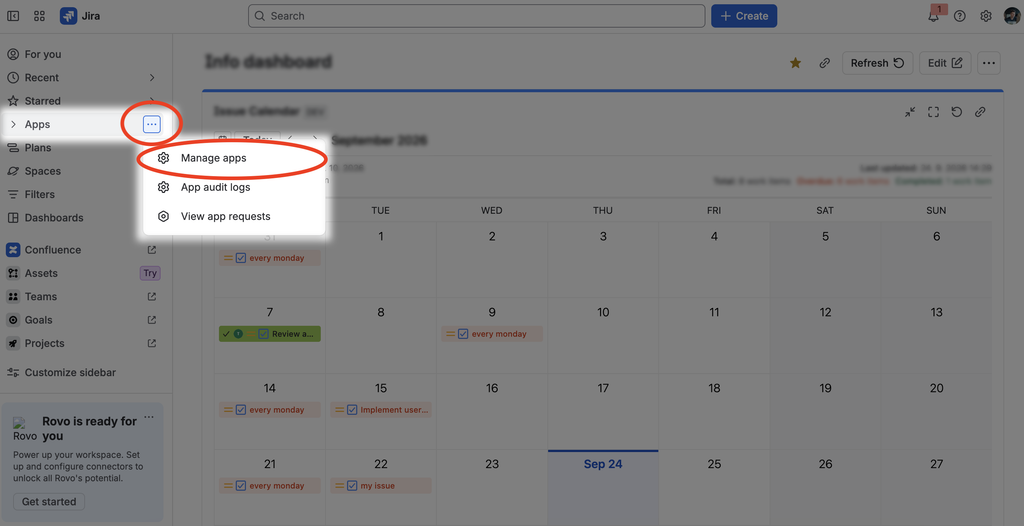
1. Navigate into app management
From within Jira “Apps” menu click “Manage apps“.
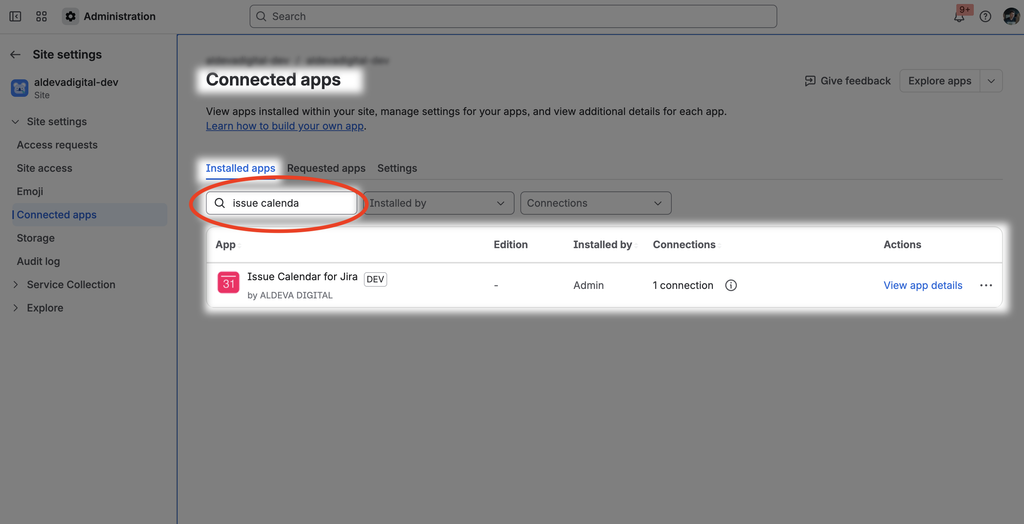
You’ll be taken into the “Connected apps” section of Jira administration. Within the search bar look up “issue calendar”
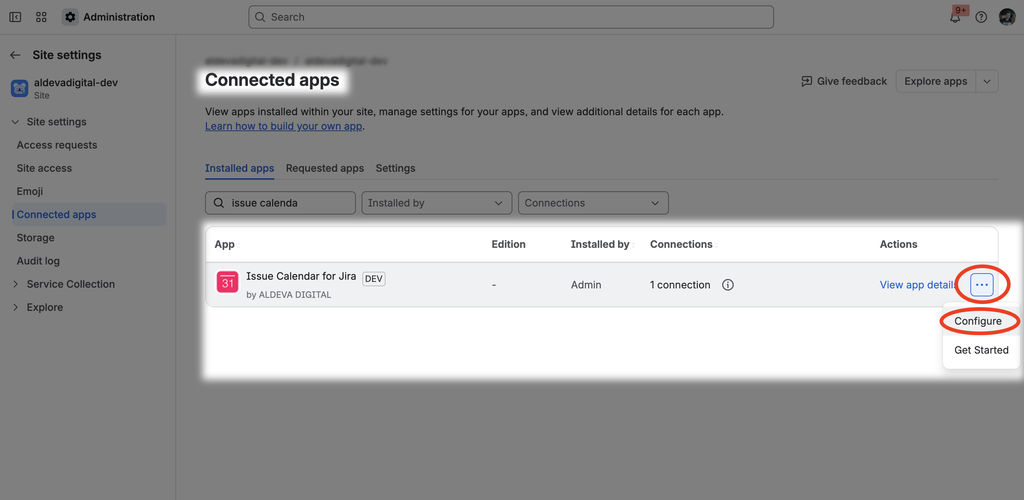
From the contextual menu on the right – click the “Configure” button.
2. Navigate into app configuration settings
On the app configuration screen scroll down and click the button “Start the migration“
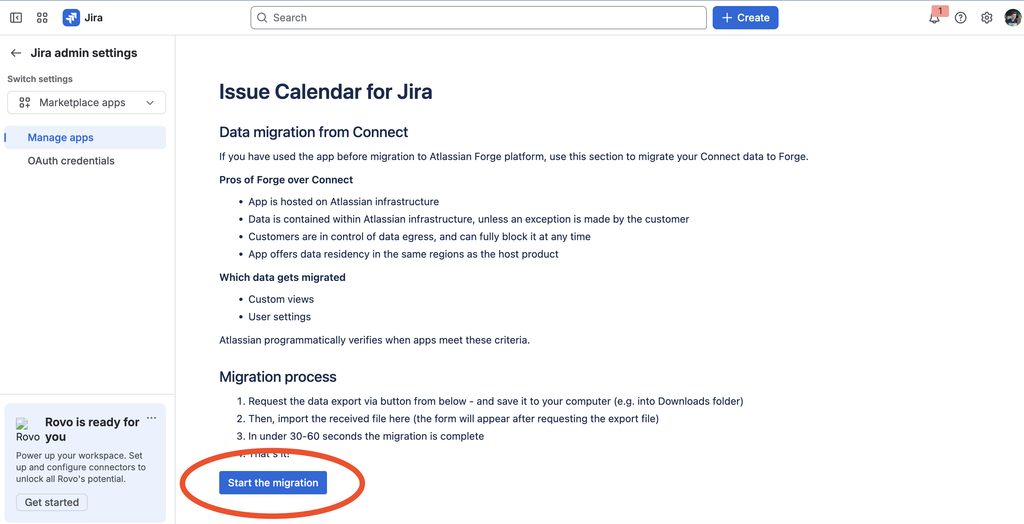
3. Follow the migration guide from the contextual window
The migration process has the following steps:
- Exporting the data (this will download a data export file into your computer in an encrypted data format)
- Import the data file back into the app
- That’s it
3.1 Start the process
Click the “Download data export” button.
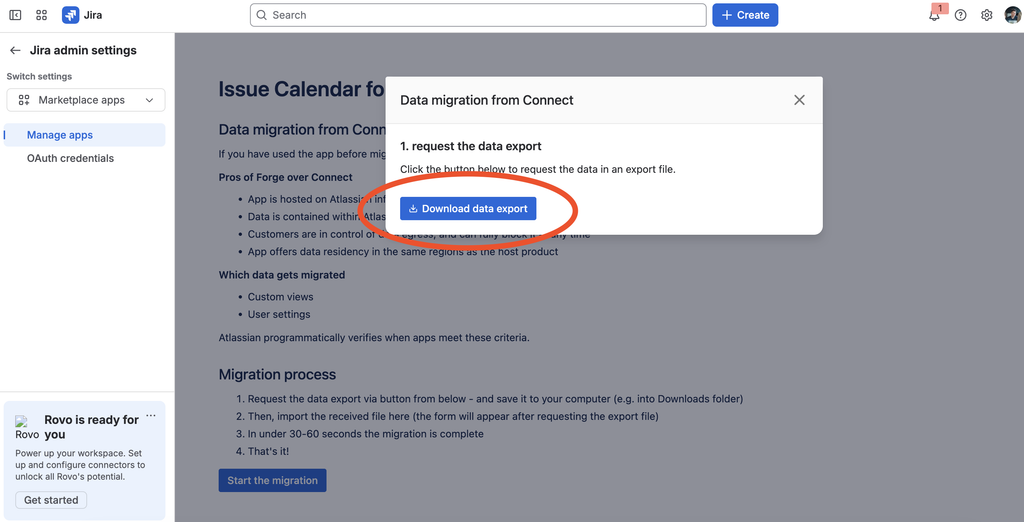
3.2 Follow the data export URL
A web addres with data export appears. Click the link and save the exported file into your computer. Once the file has been saved into your computer, click the “Proceed” button.
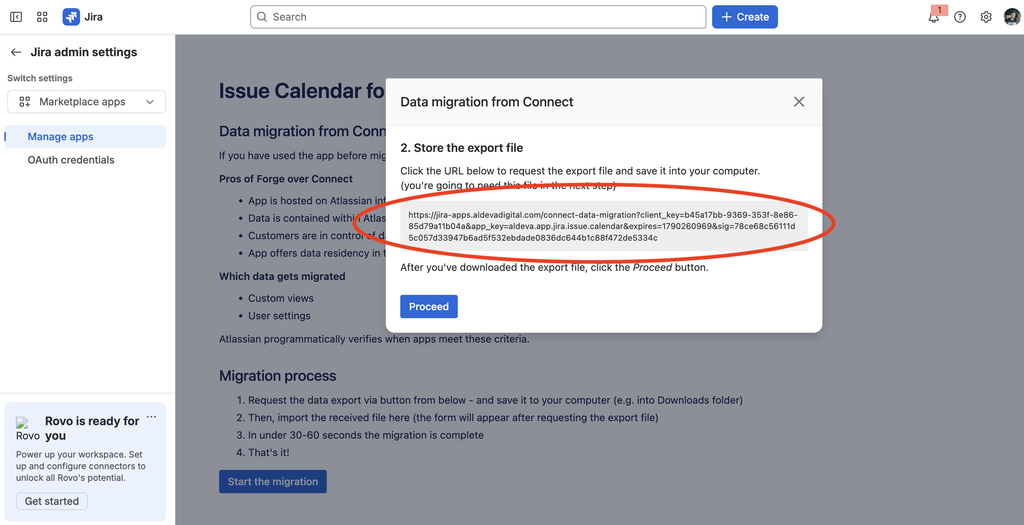
3.3 Import the file back into the app
In the next step you are asked to import the data file that you have just saved.
The data export file name should be named similarly to aldevadigital.atlassian.net-data-export.json.enc.
Once you select this file – the migration process starts and should finish quickly.
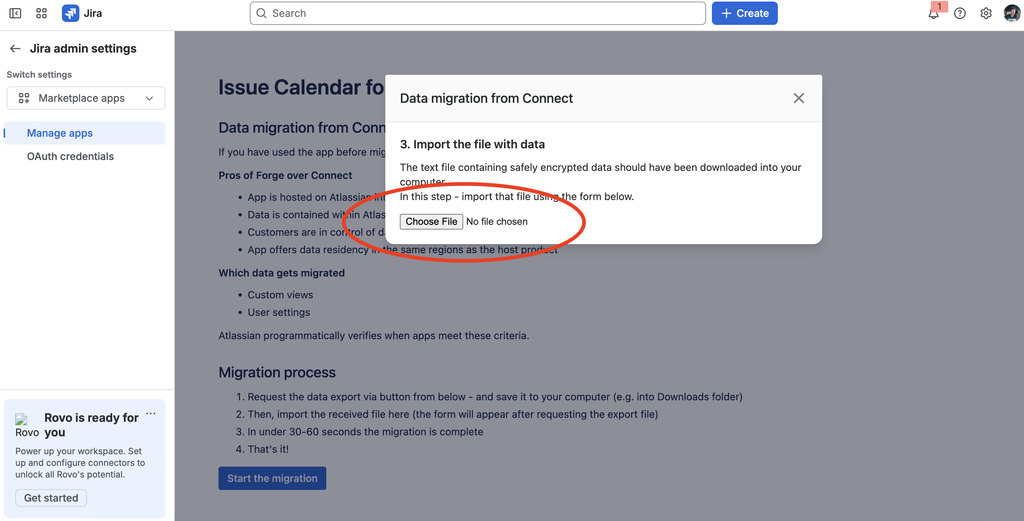
From there – after selecting the data export file – the migration process starts automatically and once the migration is done – you’ll be informed with a message on the screen.
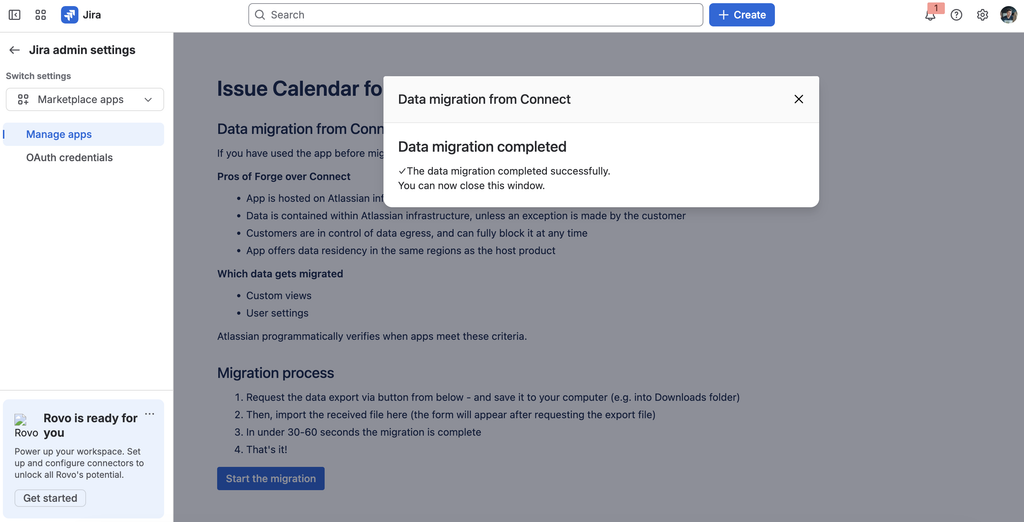
4. That’s it
If you’ve reached this step – be sure to know that the data migration is completed.
In case you have experienced any problems during the migration process, contact us using any of the channels on Support page and we’ll assist you with the migration.
Image credits: